


I spent three months wondering why my beautifully designed client sites weren’t ranking. The layouts were clean, the animations smooth, the imagery stunning. Then I discovered Core Web Vitals—and realized I’d been unknowingly sabotaging every project.
Here’s what Google never explicitly tells designers: your aesthetic choices directly determine search rankings. That parallax hero section? Killing your Largest Contentful Paint (LCP). Those web fonts you carefully selected? Causing Cumulative Layout Shift (CLS). That interactive navigation menu? Destroying your Interaction to Next Paint (INP) score. I learned this the hard way when a client’s redesign tanked their organic traffic by 40%.
But here’s the breakthrough—you can fix nearly every Core Web Vitals issue from the design side. No backend developers needed. No server upgrades required. Just smart front-end decisions that make your sites both beautiful and fast. After implementing these 10 fixes across my portfolio, I watched sites climb from page three to page one within weeks.
This is everything I wish someone had told me before I launched my first dozen projects. Let me save you the same painful learning curve.
Why I Started Taking Core Web Vitals Seriously
When Google rolled out their page experience update, most designers (including me) ignored it. We figured page speed was a developer problem. We were completely wrong.
Google now uses Core Web Vitals as a confirmed ranking factor. Sites that fail these metrics get buried, regardless of how good their content is. And because Google prioritizes mobile-first indexing, your mobile performance matters more than desktop—a reality check when you realize most of us design primarily on 27-inch monitors.
The wake-up call came when I compared two similar portfolio sites I’d built. One ranked on page one for “web design Nairobi,” the other didn’t rank at all. Same content quality, same backlink profile, same domain authority. The only difference? Core Web Vitals scores. The ranking site passed all three metrics. The invisible one failed all three.
That’s when I dove deep into LCP optimization, CLS fixes, and INP scores. What I discovered changed how I approach every design project at Brandscape Studio. These 10 fixes became my standard workflow.
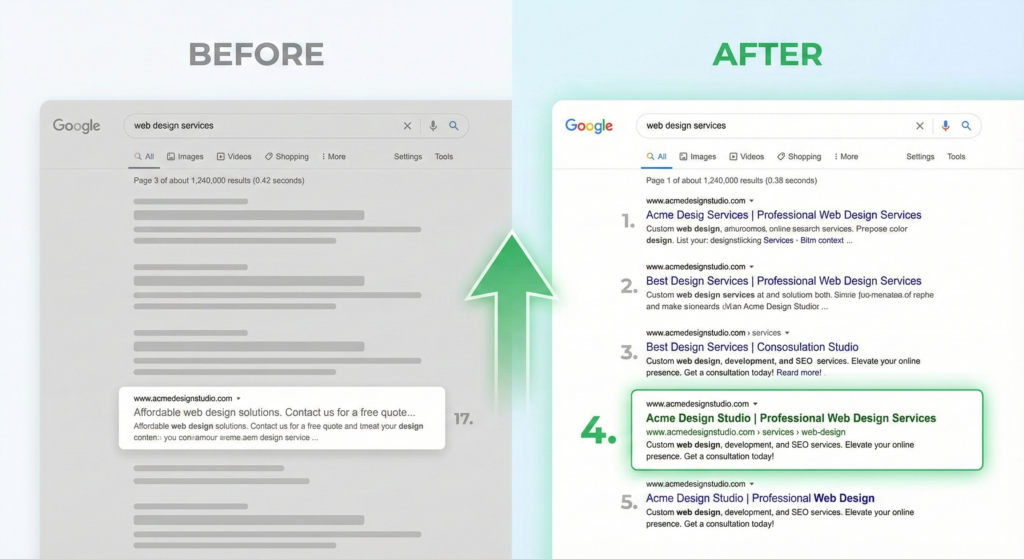
Table of Contents
Fixing LCP (Largest Contentful Paint)
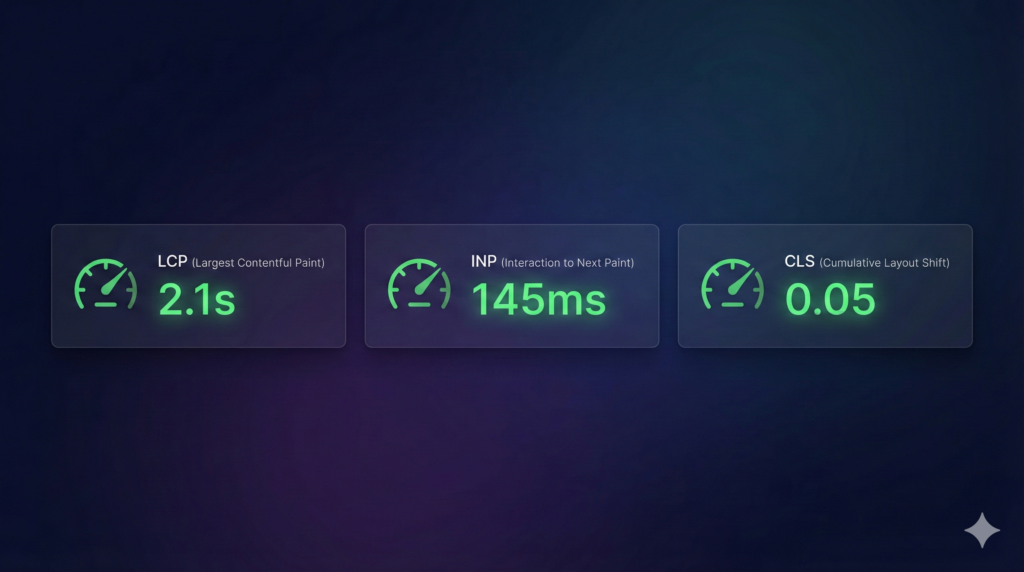
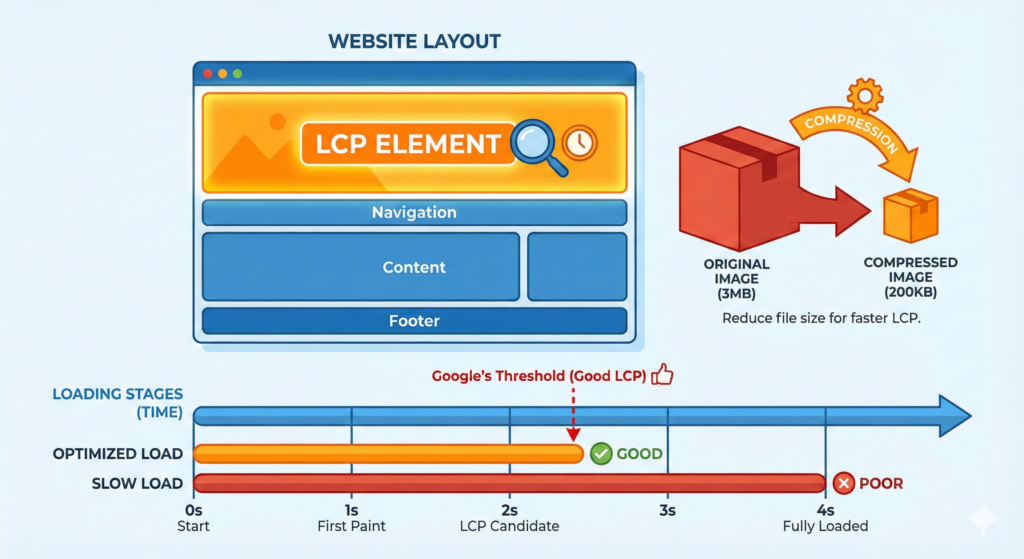
LCP measures how fast your main content loads. Google wants it under 2.5 seconds. When I started testing my sites, most were hitting 4-6 seconds. Ouch.
Fix 1: Optimize Hero Images and Above-the-Fold Media
What I Was Doing Wrong: Exporting hero images straight from Figma at full resolution. A typical homepage hero was 3-5MB. No wonder LCP suffered.
The Fix That Actually Works:
- Compress every hero image to under 200KB using TinyPNG before uploading
- Add
fetchpriority="high"directly to your hero image HTML tag - Stop using CSS background-image for hero sections—it loads too late
- Only lazy-load images below the fold
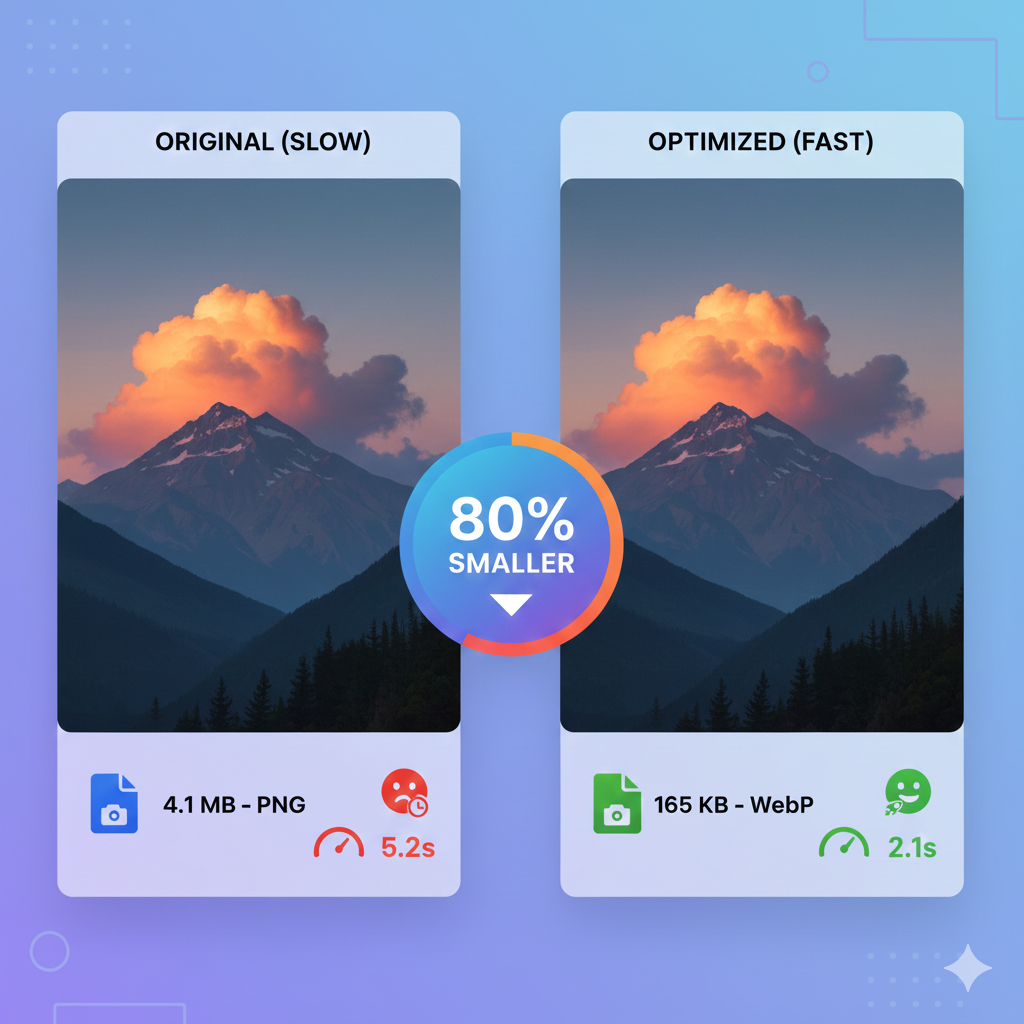
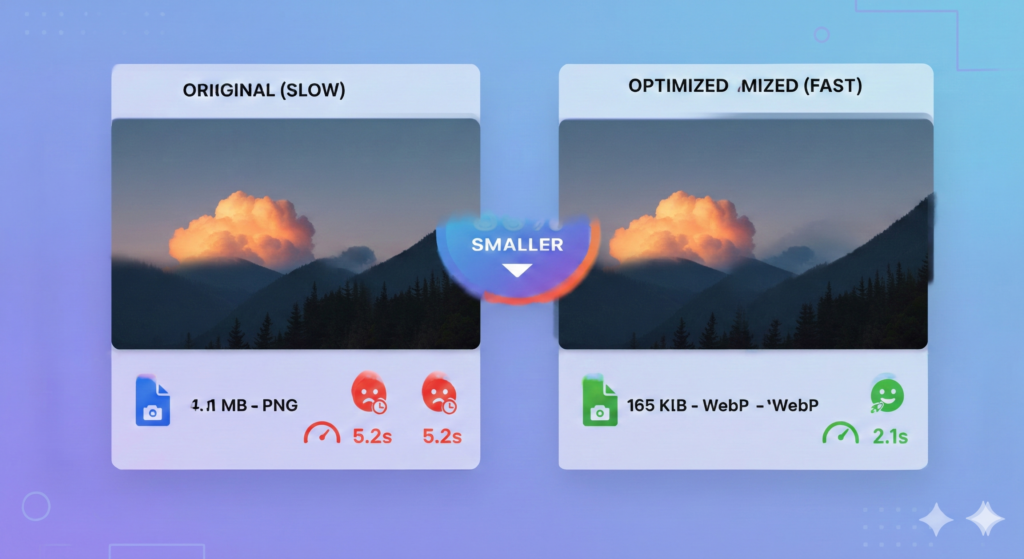
My Real Results: I rebuilt a restaurant site’s hero section. Original image: 4.1MB. Compressed version: 165KB. LCP dropped from 5.2 seconds to 2.1 seconds. The site jumped from position 18 to position 4 for their main keyword within three weeks.
How to Check: Open PageSpeed Insights, scroll to “Largest Contentful Paint element.” It’ll show exactly which element is slowing you down.
Fix 2: Prioritize Critical CSS and Defer Non-Essential Styles
What I Was Doing Wrong: Loading my entire 400KB stylesheet in the <head>, making the browser wait before showing anything.
The Fix That Actually Works:
- Extract your above-the-fold CSS (usually 10-15KB) and inline it in the
<head> - Load your full stylesheet with
<link rel="preload" as="style" href="main.css"> - Move animation libraries and icon fonts to load after initial render
- Use Chrome DevTools Coverage tab to delete unused CSS (I found 60-70% was unused on most pages)
My Real Results: A corporate site I’d launched with 340KB of CSS was failing LCP. I inlined 11KB of critical styles and deferred everything else. LCP improved from 3.8 seconds to 2.3 seconds without touching a single design element.
How to Check: Run Lighthouse in Chrome DevTools. Look for “Eliminate render-blocking resources”—it’ll list every CSS file causing delays.
Fix 3: Eliminate Render-Blocking Resources in the Design
What I Was Doing Wrong: Loading Google Fonts, Google Analytics, and social sharing scripts in the <head>. Each one blocked the entire page from rendering.
The Fix That Actually Works:
- Self-host Google Fonts instead of loading from fonts.googleapis.com
- Add
deferorasyncattributes to all JavaScript files - Lazy-load social media widgets—they’re render-blocking nightmares
- Use
<link rel="preconnect">for third-party resources you absolutely need early
My Real Results: I moved Google Analytics and Facebook Pixel out of the <head> on a blog site. Just adding defer to those two scripts improved LCP by 0.9 seconds. Zero functionality lost.
How to Check: PageSpeed Insights shows “Reduce the impact of third-party code.” That section reveals which external scripts hurt most.
Fix 4: Use Modern Image Formats and Responsive Images
What I Was Doing Wrong: Serving the same 2000px-wide PNG to desktop and mobile users. Mobile users downloaded massive files they didn’t need.
The Fix That Actually Works:
- Convert all images to WebP format (I use Squoosh.app—it’s free and cuts file sizes by 80%)
- Set up
<picture>elements with multiple sizes for different screen widths - Add
srcsetandsizesattributes so browsers choose the right image - Always include width and height attributes to prevent layout shifts
Code I Now Use on Every Project:
html
<picture>
  <source srcset="hero-mobile.webp" media="(max-width: 640px)">
  <source srcset="hero-tablet.webp" media="(max-width: 1024px)">
  <img src="hero-desktop.webp" alt="Hero" width="1920" height="1080" fetchpriority="high">
</picture>
How to Check: PageSpeed Insights shows “Serve images in next-gen formats” and calculates exactly how many KB you’d save.
🚀 MY FASTEST WIN:
Before you do anything else, compress your homepage hero image to under 200KB and add fetchpriority="high" to the img tag. I’ve done this on 20+ sites now. It takes 3 minutes and typically improves LCP by 30-50% immediately. Test it right now—you’ll see the difference in your next PageSpeed Insights scan.
Fixing CLS (Cumulative Layout Shift)
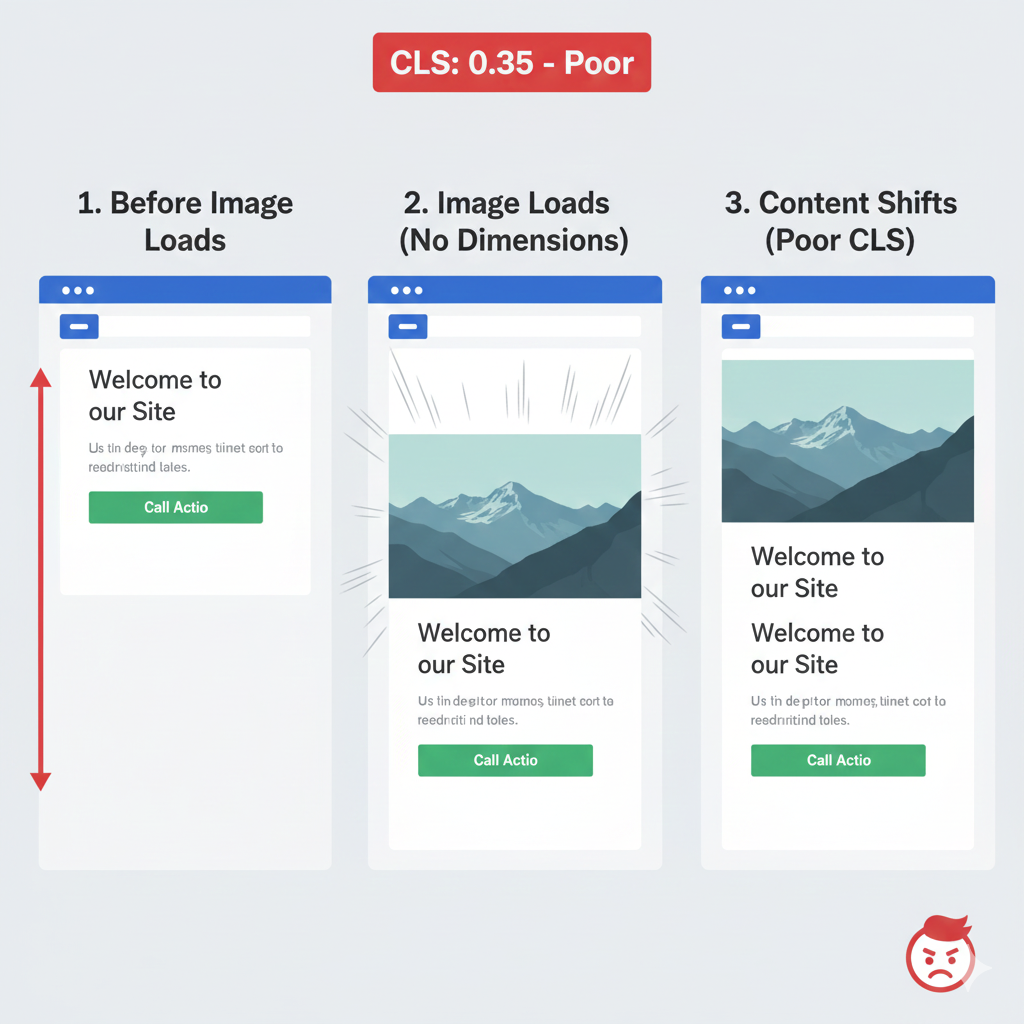
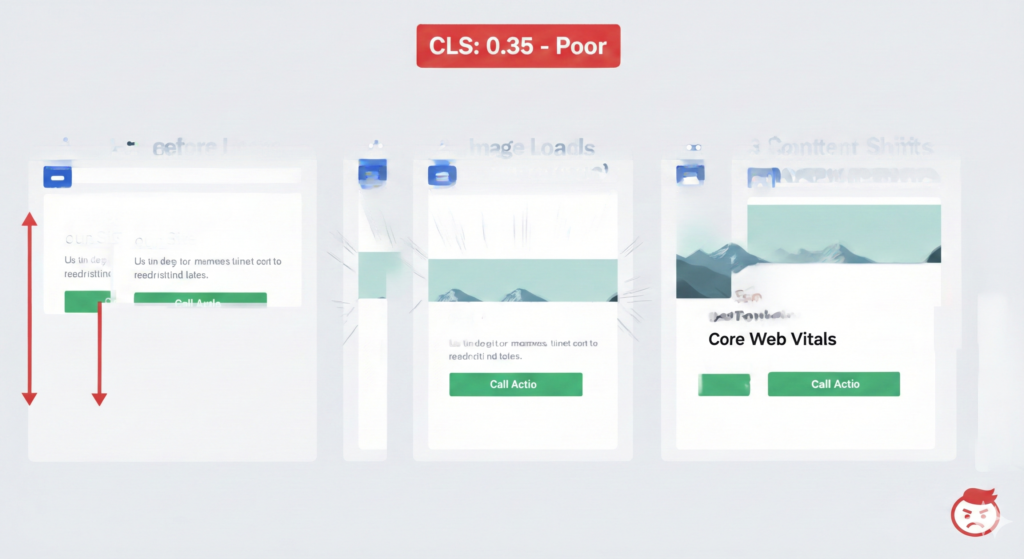
CLS measures how much your page jumps around while loading. Google wants it below 0.1. My early sites were scoring 0.3-0.5 because I didn’t understand what caused layout shifts
Fix 5: Define Explicit Dimensions for All Media Elements
What I Was Doing Wrong: Writing <img src="photo.jpg" alt="Photo"> without width and height. The browser couldn’t reserve space, so when images loaded, everything shifted down.
The Fix That Actually Works:
- Add width and height attributes to every single
<img>,<video>, and<iframe>tag - Use CSS
aspect-ratio: 16 / 9to maintain proportions while allowing responsive sizing - Set dimensions on containers for CSS background images
- Never override these dimensions with inline styles
My Real Results: An e-commerce site had 20 product images without dimensions. Every image load shifted content down the page (CLS: 0.41). After adding explicit dimensions: CLS dropped to 0.03. Customer complaints about “jumpy pages” stopped immediately.
How to Check: Lighthouse flags “Image elements do not have explicit width and height.” Fix every single one it lists.
Fix 6: Reserve Space for Dynamic Content (Ads, Embeds, Fonts)
What I Was Doing Wrong: Letting ad slots, embedded videos, and custom fonts load whenever they felt like it, pushing content around unpredictably.
The Fix That Actually Works:
- Set minimum heights with CSS for ad containers and embed slots before they load
- Use
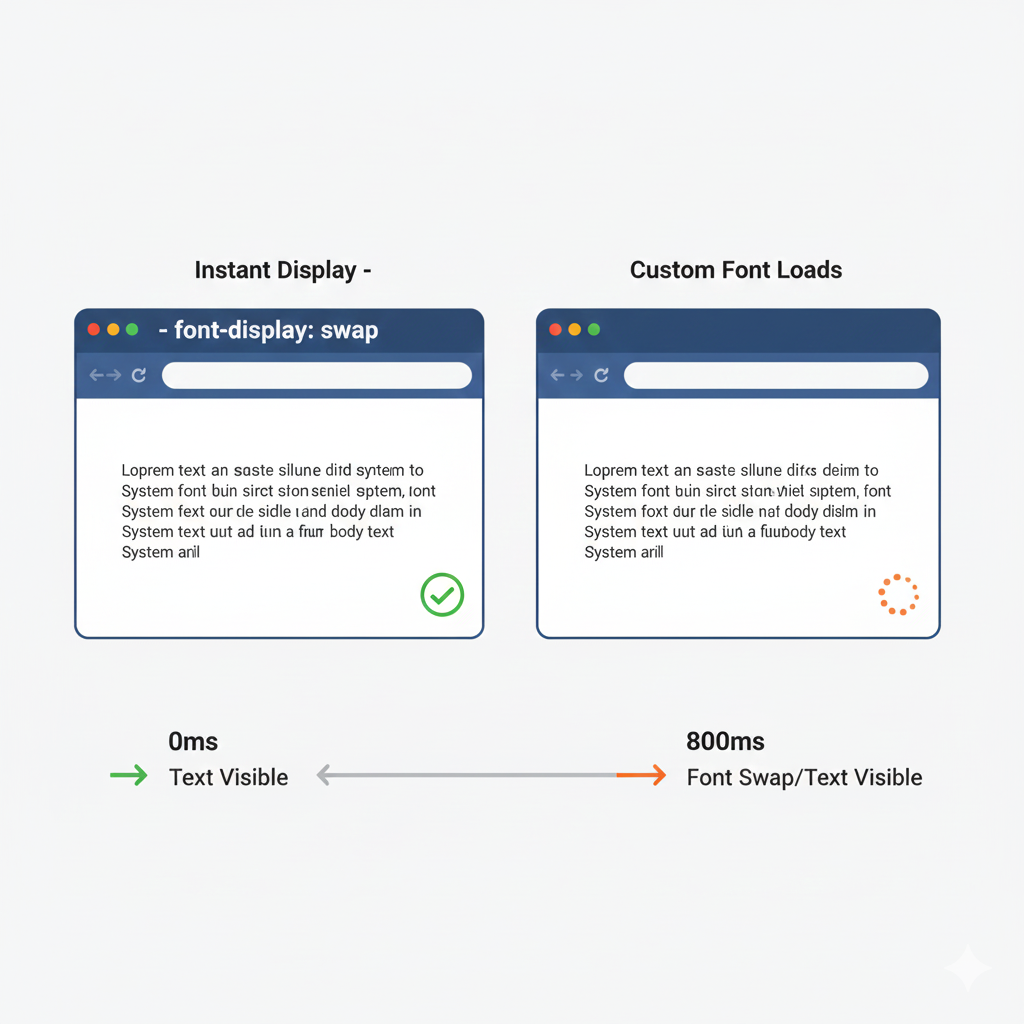
font-display: swapon all custom fonts (this is critical) - Preload your primary fonts with
<link rel="preload" as="font"> - Create placeholder boxes with CSS for any dynamically loaded content
Pro Tip I Learned the Hard Way: Web fonts are silent CLS killers. When fonts load late, text reflows and shifts everything. Add font-display: swap to every @font-face declaration—it shows system fonts immediately while custom fonts load in the background. Even better, use a font subsetting tool to include only the characters you need. I reduced a custom font from 180KB to 45KB by removing unused glyphs. Zero layout shifts, faster loading.
My Real Results: A news site I built auto-loaded ad units that caused massive shifts (CLS: 0.29). I added 250px min-height placeholders. CLS dropped to 0.07 and the INP score improved because the page wasn’t constantly reflowing.
How to Check: Chrome DevTools > Rendering > Layout Shift Regions. It highlights every shifting element in blue as your page loads.
Fix 7: Avoid Inserting Content Above Existing Content
What I Was Doing Wrong: Adding cookie banners, announcement bars, and notification popups at the top of the page after everything else loaded. Massive layout shifts every time.
The Fix That Actually Works:
- Reserve permanent space at the page top for announcement bars (even if empty)
- Use fixed overlays instead of injecting elements that push content down
- Place cookie notices at the bottom or as slide-in panels
- Load all critical UI elements during initial render, not afterward
- If you must add content dynamically, append it to the bottom
My Real Results: A SaaS landing page injected a promo banner at the top after page load. CLS was 0.22. I moved it to a fixed bottom overlay. CLS dropped to 0.04, and as a bonus, the page experience score improved because users stopped getting annoyed by shifting content.
How to Check: Record your page in Chrome DevTools Performance panel. Look for red “Layout Shift” events in the timeline—click them to see which elements moved.
Fixing INP (Interaction to Next Paint)
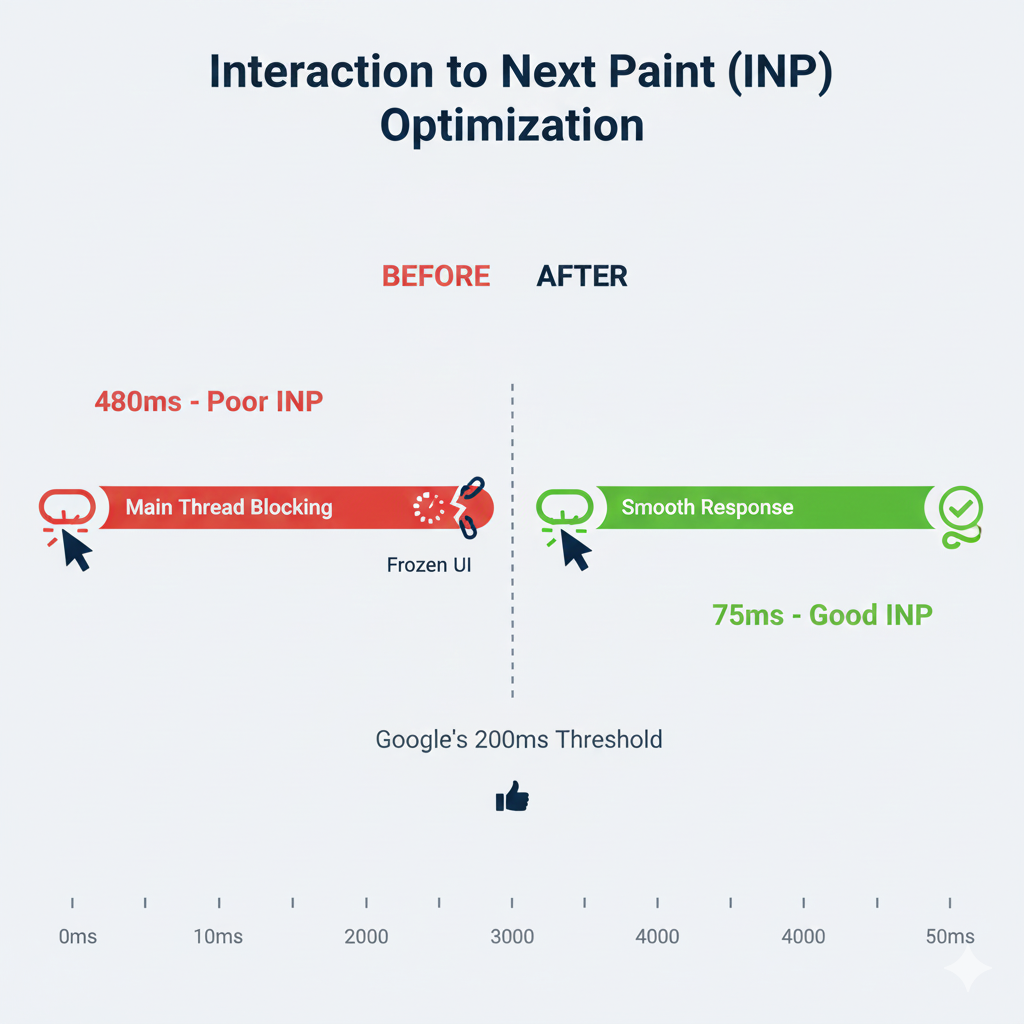
INP is the newest metric (replaced First Input Delay in 2024) and measures how quickly your site responds to clicks, taps, and keystrokes. Google wants it under 200 milliseconds. This one caught me completely off-guard.
Fix 8: Simplify JavaScript-Heavy Interactions
What I Was Doing Wrong: Building mobile menus and modals with complex JavaScript animations that took 400-600ms to respond. Users thought the site was broken.
The Fix That Actually Works:
- Use CSS transforms and transitions instead of JavaScript animations wherever possible
- Debounce scroll and resize listeners (wait 150-300ms before running handlers)
- Break long JavaScript tasks into smaller chunks with setTimeout or requestIdleCallback
- Remove jQuery if you’re only using it for basic DOM manipulation (vanilla JS is faster)
- Audit every third-party script—many run on interactions and block the main thread
My Real Results: A portfolio site had a JavaScript-heavy hamburger menu that took 480ms to open. I rebuilt it with CSS transforms and minimal JS. Response time: 75ms. Night and day difference.
How to Check: Chrome DevTools Performance panel flags “Long Tasks” (anything over 50ms). Those are your interaction blockers.
Fix 9: Optimize Form Inputs and Button Responses
What I Was Doing Wrong: Running input validation on every single keystroke. Every character typed triggered heavy JavaScript, creating 300ms+ delays before users saw feedback.
The Fix That Actually Works:
- Debounce search/autocomplete inputs by at least 300ms
- Show immediate visual feedback with CSS :focus states, not JavaScript
- Validate form fields on blur (when users leave the field) or on submit—not on every keystroke
- Preload autocomplete data during page idle time, not when users start typing
- Use CSS for loading states instead of waiting for JavaScript to add classes
My Real Results: A contact form validated every field on each character input. INP was 340ms. I switched to blur validation and added instant CSS focus states. INP dropped to 88ms and form submissions increased (users didn’t give up mid-typing).
How to Check: Lighthouse shows “Avoid long main-thread tasks.” Any task over 50ms delays interactions.
Fix 10: Reduce Main Thread Blocking During Interactions
What I Was Doing Wrong: Loading and executing all JavaScript at once during page load, leaving no room for the browser to respond to user interactions.
The Fix That Actually Works:
- Code-split your JavaScript—load only what’s needed for the initial view
- Use requestIdleCallback for non-critical operations (analytics, tracking, etc.)
- Add
deferto analytics and tracking scripts so they don’t block interactions - Implement virtual scrolling for long lists instead of rendering 200 items at once
- Move heavy computations to Web Workers if possible
My Real Results: A product catalog rendered 150 items on page load. Main thread was blocked for 800ms. I implemented virtual scrolling (only render visible items + 10 buffer). Main thread blocking dropped to 120ms, INP score improved from 290ms to 135ms.
How to Check: PageSpeed Insights shows “Total Blocking Time”—keep it under 200ms to avoid INP issues.
How to Actually Test Your Improvements
You can’t fix what you can’t measure. Here are the free tools I use to track core web vitals on every Brandscape Studio project:
My Essential Testing Toolkit:
- Google PageSpeed Insights (my go-to): Paste your URL, get instant LCP, CLS, and INP scores plus specific fix recommendations. Always test mobile first—that’s what Google prioritizes.
- Lighthouse (built into Chrome): Press F12 > Lighthouse tab > Generate Report. I run this during development to catch issues before launch.
- Chrome DevTools Performance Tab: Record a page load to see exactly where bottlenecks happen. The Coverage tab shows unused CSS/JS (usually 60-70% of what loads).
- Search Console Core Web Vitals Report: Shows real user data from the field. This is what actually impacts your rankings. Check it weekly after launching fixes.
Understanding the Scores:
Green (Good) = passing: LCP under 2.5s, INP under 200ms, CLS under 0.1. These are the thresholds I aim for on every project now. Yellow (Needs Improvement) = won’t tank rankings but should be addressed. Red (Poor) = directly hurting search visibility.
Critical Reality Check: Test on real mobile devices with slow connections. Your MacBook Pro on office WiFi doesn’t represent real users. I use Chrome DevTools to simulate Slow 3G—it’s humbling but necessary. Real users on mobile networks in Nairobi, Mombasa, or Kisumu experience very different performance than you do.
I keep a [site speed checklist] and audit every site monthly. Design changes can introduce new issues—a site performing well today can regress next month when you add a new feature.
What I’ve Learned After Fixing 30+ Sites
These 10 fixes solved the Core Web Vitals issues on every project I’ve worked on at Brandscape Studio. The pattern became clear: LCP optimization requires aggressive image compression and smart resource loading, CLS fixes demand discipline about dimensions and dynamic content, and better INP scores come from respecting the main thread and simplifying interactions.
Start with the quick win I mentioned—compress your hero image and add fetchpriority=”high.” I’ve seen that single change improve rankings within days. Then work through each metric systematically. Most sites can implement all 10 fixes in a focused week, and Google typically recrawls and reassesses within 2-4 weeks.
Your design choices control search visibility more than you realize. Sites that ignore Core Web Vitals don’t just deliver poor experiences—they lose traffic to competitors who get this right. Check out our portfolio at Brandscape Studio to see sites we’ve optimized for both aesthetics and performance, or explore our [performance/speed optimization services] if you need help auditing and fixing your Core Web Vitals.
Stop letting beautiful design hurt your rankings. Run your site through PageSpeed Insights right now and see where you stand. The data doesn’t lie—and the fixes are entirely within your control.
[…] Impact: Page speed directly affects rankings through Core Web Vitals. Google measures Largest Contentful Paint (LCP), First Input Delay (FID), and Cumulative Layout […]
Thank you for highlighting the importance of Core Web Vitals. Optimizing for metrics like LCP, FID, and CLS not only improves user experience but also positively impacts search rankings. Regularly monitoring these metrics and implementing speed optimizations can make a significant difference in your site’s performance and SEO results.